
Nine gallery layouts
Masonry, grid, carousel, slider, justified row, list, collage, portfolio and lookbook. Responsive columns for desktop, tablet and phone, captions, hover effects, aspect ratios and image links.
Shopify app · free plan
Turn product shoots, campaigns and customer photos into galleries that sell. Pick one of nine layouts, pin the products in each photo and place the gallery on any page from the theme editor. No theme code, and your images stay in your own shop.
Add to your store, freeWatch the 50-second demo

Real footage from a development store: create a lookbook in the admin, add the block in the theme editor, then shop the look, filter by tag and open the lightbox on the storefront.
Most gallery apps render your images from their own servers, so galleries break when the app does. Snug Gallery is built the other way round: your store keeps the photos, Shopify serves them, and the app is only involved while you edit.
Masonry, grid, carousel, slider, justified row, list, collage, portfolio and lookbook. Responsive columns for desktop, tablet and phone, captions, hover effects, aspect ratios and image links.
Pin products and variants onto any photo. Shoppers tap a pin, see the price and add to cart in place, so the lookbook page becomes a sales page.
Add a submission form to your storefront and collect real customer photos. Approve or reject each one in the admin before it appears, then show them next to the products they feature.
A native app block for any Online Store 2.0 theme, including Dawn (not yet with Canvas-edited themes). Drop it on the home page, a collection, a product page or a dedicated lookbook page and preview changes live.
Images live in your Shopify Files and load from Shopify's CDN at the right size for every screen. Gallery settings are saved in your store. Nothing depends on our uptime.
A keyboard- and swipe-friendly lightbox, tag filters with a pill bar, Pinterest save buttons, right-click protection and MP4, MOV or WebM clips alongside your photos.
Three steps, about five minutes, no developer.
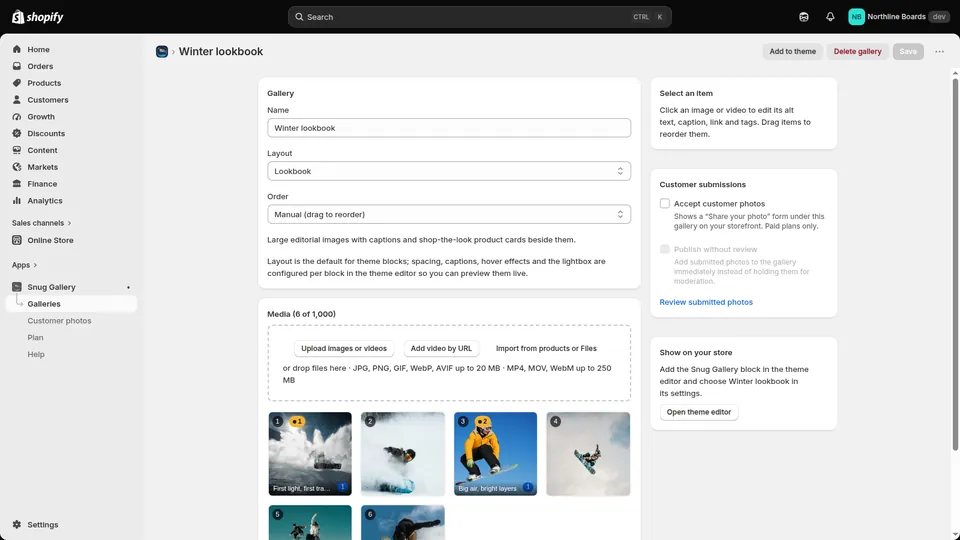
Upload photos or import them from products and Shopify Files, pick a layout, write captions and alt text, add tags and pin products.
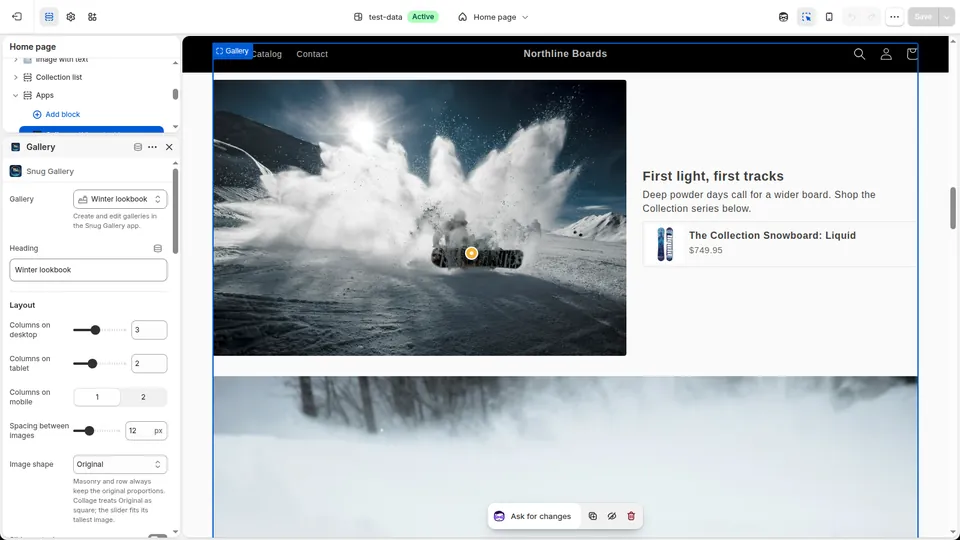
Open the theme editor, add the Gallery block from the Apps tab, choose your gallery and tune columns, spacing, hover effect and lightbox with a live preview.
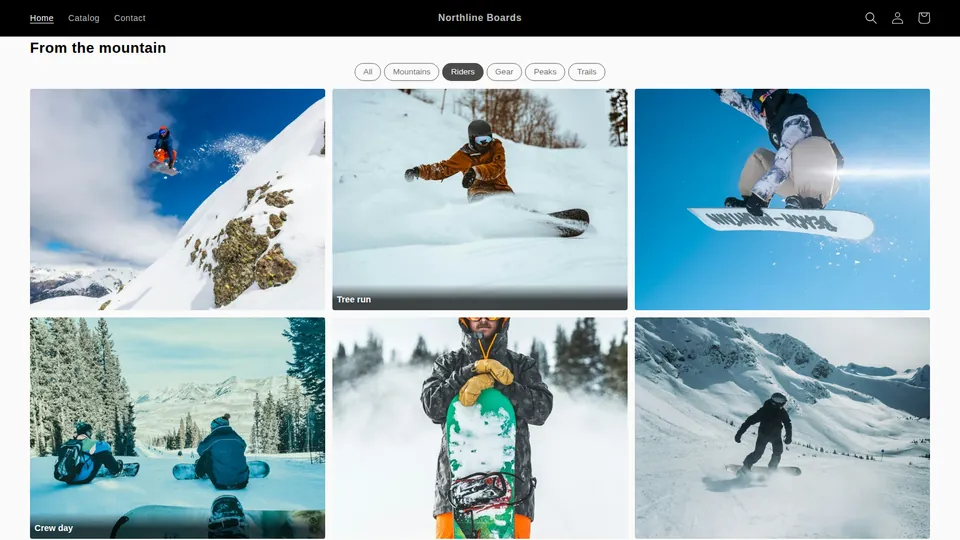
Shopify renders the gallery as part of your theme and serves every image from its CDN. Shoppers filter, open the lightbox and add pinned products to the cart.
Billed through Shopify. Change or cancel any time. Existing galleries keep rendering if you downgrade.
$0/month
$4.99/month
$9.99/month
No. Snug Gallery renders through a Shopify theme app extension, so the gallery HTML is part of your page and every image is served from Shopify's CDN at the right size for each screen, exactly like your product photos. The storefront script is about 10 KB and loads only on pages that contain a gallery block.
No. You add the Gallery block from the Apps tab of the theme editor, the same way you add any theme section, and pick the gallery in its settings. Nothing is injected into your theme files, and nothing is left behind if you uninstall.
Any Online Store 2.0 theme (not yet with Canvas-edited themes), which includes Dawn and every theme released in the Shopify Theme Store since 2021. If your theme editor shows an Apps category when you click Add block or Add section, it works.
Not yet. Snug Gallery works with Online Store 2.0 themes edited in the standard theme editor. Themes created with New or copied with Duplicate in Canvas have a Canvas badge and can't use app blocks or embeds yet. Shopify has said support is coming. On Online Store > Themes, use your original theme without the badge, or a copy of that theme made with Duplicate (not Duplicate in Canvas).
Your images are uploaded to your own store's Shopify Files, and gallery settings are stored in your shop. Our servers are only involved while you edit in the admin. If you uninstall, the block disappears from your pages and your files stay in your Shopify Files library.
Yes. On the Unlimited plan you can pin products and variants onto any image. Shoppers tap the pin to see the product card and add it to the cart without leaving the page; your theme's cart drawer or cart count updates as usual.
Yes. Standard and Unlimited plans include a customer photo submission form for your storefront. Submissions wait in a moderation queue in the admin and only appear in a gallery after you approve them.
No. The free plan includes one gallery of up to 25 images with all nine layouts, the lightbox, captions, tags and video, and it stays free for as long as you want. Paid plans are billed through Shopify and can be changed or cancelled at any time.
Yes. Paid plans can import images from your product media or from the Shopify Files library, so you do not need to re-upload photos you already use.
Install in a minute, keep the free plan as long as you like.
Get Snug Gallery on the Shopify App Store