
A lot of businesses on Shopify do not sell products so much as work: a ceramicist with a few pieces for sale and a hundred commissions behind them, a wedding photographer selling albums and prints, an interior studio whose shop is a sideline to the projects. Shopify is built around the product grid, and a product grid is the wrong way to show work. This guide covers how to build a proper portfolio page on Shopify with Snug Gallery, why a page beats a collection or a blog for it, and how to keep the page doing commercial work without turning it into a shop window.
Why a product grid is the wrong portfolio
A Shopify collection shows items you can buy, sorted by price or date, each with a title and a price under it. A portfolio shows what you have made, grouped by the kind of work, often with no price at all because the piece sold years ago or was a commission. Forcing portfolio pieces into draft products to get them on a page leaves you with a catalogue full of unsellable items, filters that list them, and a search box that finds them.
Blog posts are the other common workaround and they fail differently. A post is one piece, in chronological order, with the theme's article layout wrapped around it. Browsing fifty of them is a scroll through dates, not a look at a body of work. Potential clients want to see range at a glance and then narrow it: weddings, not portraits; stoneware, not porcelain. That is a gallery with a filter, and the only question is where to put it.
Shopify's sections and blocks model lets a plain page hold any section or app block your theme supports, so a page at /pages/portfolio can carry a filterable gallery, an introduction, and a contact or enquiry section, with none of the product machinery underneath.
Decide what the page is for before you upload anything
A portfolio page has one of two jobs, and it should be clear which. Either it exists to get enquiries (commissions, bookings, projects), in which case every piece should lead toward a contact form, or it exists to sell prints, editions or the handful of pieces that are available, in which case pieces should link to products. Pages that try to do both with equal weight usually do neither.
Pick the primary job and let the secondary one ride along. A photographer whose income is bookings can still link a few images to the print shop. A maker who mostly sells can still have a Commissions tag whose pieces link to the enquiry form. The gallery block does not care which; the links on each image do the work.
Step 1: gather and sort the work
- Pick 30 to 60 pieces. A portfolio is edited; the aim is range and quality, not completeness. If it hurts to leave something out, that is the right size.
- Group them with tags that match how a client thinks, not how you file things. Weddings, Portraits, Editorial beats 2024, 2025, 2026. Two or three tags per piece is plenty; the first few tags you apply decide the order of the filter buttons.
- Write a caption title and a line of text for each: the piece's name or the project, then the material, place or client type. On a portfolio the caption is often the only text on the page, so it carries the search value too.
- Export images at 1600 to 2000 px on the long edge. Shopify stores the original in Files and serves resized versions, so there is no need to pre-shrink; there is also no benefit to uploading 6000 px scans.
Step 2: build the gallery
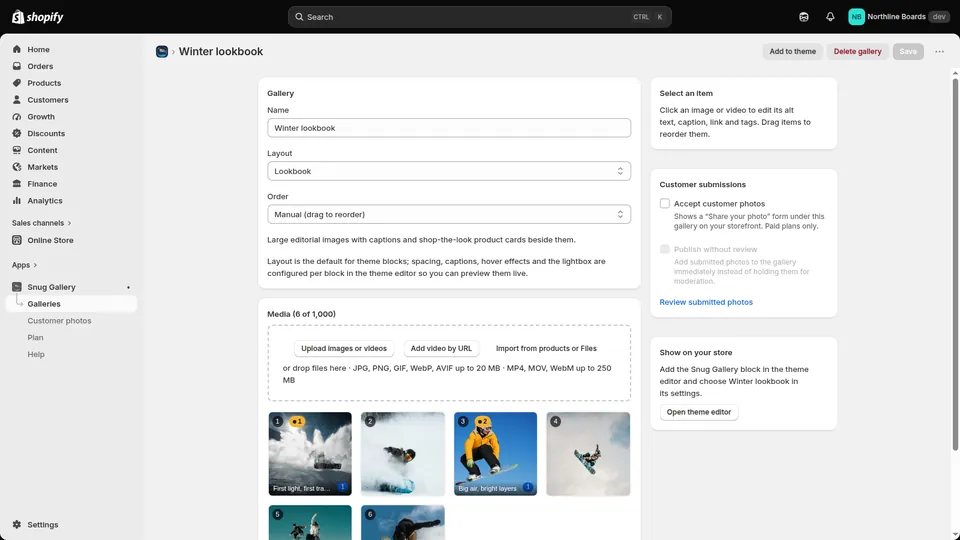
- In Snug Gallery, create a gallery called Portfolio and choose the Portfolio layout. It renders even tiles with the caption title overlaid and the tag filter bar switched on by default, which is the arrangement most portfolio sites converge on. Masonry is the alternative if your work is a mix of landscape and portrait frames and cropping to a square would hurt it.
- Upload the images or import them from Files. Set each image's caption title, caption text and tags. Use the bulk tag editor to tag a whole project's images in one go.
- Add a link to each image where there is somewhere useful to go: the product page for a piece that is for sale, the contact page for a commissionable style, or nothing for sold work.
- Set Order to Manual and drag the strongest pieces to the top of each group. Visitors decide in the first row whether to keep scrolling.
Step 3: put it on a page
- Create a page at Online Store > Pages called Portfolio, or Work if that suits the business. Leave the body empty; the content will come from sections.
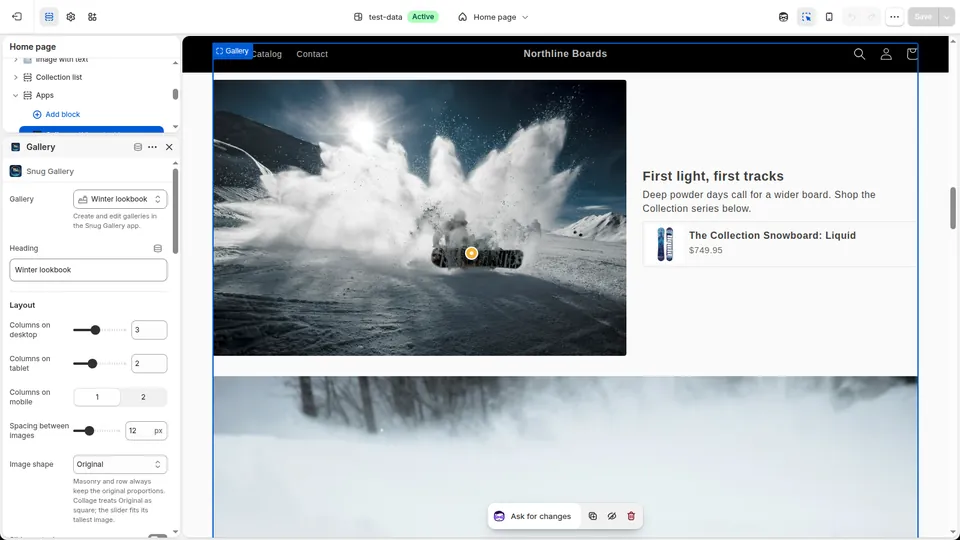
- Open the page in the theme editor, add a Rich text section with two or three sentences about who you are and what you take on, then add the Gallery block from Snug Gallery and select the Portfolio gallery.
- Turn on the lightbox so a tile opens full size with its caption, and keep the tag filter bar visible. If the theme offers a page-width setting, use the full width; portfolios want room.
- Below the gallery add the section that matches the page's job: a contact form for enquiries, or a Featured collection of available prints for sales. Then add the page to the main menu.
Making the portfolio earn its keep
The commercial trick on a portfolio page is to make the next step obvious without making the page look like a shop. Three patterns work.
Link sold pieces to the enquiry form rather than nowhere. Someone who loves a piece that has gone is the ideal commission client; the caption can say "Sold. Commissions open" and the click goes to the form.
Keep a small Available tag. Filtering to the four pieces you can actually buy is far more persuasive than a separate shop page with the same four items, because the visitor arrives at them having seen the body of work that makes them worth the price.
For photographers and anyone selling editions, pin products on the images themselves. On the Unlimited plan Snug's Shop the look pins add a product to the cart from the lightbox, so a print can be bought from the image it is a print of. We cover the mechanics in the shoppable lookbook guide.
Search and sharing
Portfolio pages rank for the queries that bring work in: "wedding photographer Lisbon", "commissioned stoneware dinner set". Put that phrase in the page's SEO title and in the introduction, and let the captions carry the specific places and project types. Every image is served from Shopify's CDN with its alt text, so the images themselves can appear in Google Images; the image search guide explains what Google needs from alt text and file names.
Keep the URL stable. A portfolio at /pages/portfolio that gets refreshed twice a year accumulates links and rankings; one that is rebuilt as /pages/portfolio-2026 every January starts over. Replace images inside the gallery rather than creating a new gallery for each year.
When a client asks to see more, send them the filtered view. The filter bar updates the page without a reload, so sharing the page plus a word about which tag to click is usually enough, and the lightbox gives them a clean full-screen view on a phone.
What to avoid
Draft products as portfolio pieces. They leak into search, filters and feeds, and every one is a product you do not sell.
Autoplaying slideshows for a portfolio. Clients want to control the pace and compare pieces; a carousel shows one at a time and hides the range.
Watermarks across the image. If copying worries you, the guide on protecting gallery images covers what actually helps and what only annoys legitimate visitors.
Uploading everything. A sixty-piece portfolio with a filter reads as confident; a four-hundred-piece one reads as an archive.
A portfolio page built this way is a Shopify page with a gallery block on it, nothing more exotic. It survives theme changes because the gallery lives in the app and the images live in Files, and it keeps selling because every piece has somewhere sensible to go when a visitor clicks.
Frequently asked questions
Can I build a portfolio page on Shopify without using products?
Yes. Create a page under Online Store > Pages and add a gallery app block to it in the theme editor. The images, captions and tags live in the gallery app, not in your product catalogue, so nothing shows up in search, filters or feeds as something for sale.
How do I add a filter to a Shopify portfolio page?
Tag each image in Snug Gallery with the category a client would look for, then turn on the tag filter bar in the gallery block. The Portfolio layout shows the bar by default, and filtering happens on the page without a reload, so visitors can narrow from all work to one type in a click.
Should a portfolio be a Shopify page, a collection or a blog?
A page. Collections only show products and sort by product attributes, which portfolio pieces do not have. Blog posts show one piece at a time in date order. A page with a filterable gallery shows the whole body of work at a glance and lets each piece link to a product or an enquiry form.
Can visitors buy a print directly from a portfolio image?
Yes, two ways. Link the image to the print's product page, or on Snug Gallery's Unlimited plan pin the product on the image so it can be added to the cart from the lightbox. Pieces that are sold can link to a contact form instead so the enquiry is one click away.
More guides
- How to add a photo gallery to a Shopify store (no code)
- How to make a shoppable lookbook on Shopify
- Shopify gallery not loading? Why gallery apps vanish
- Cozy Image Gallery alternative: a 20-minute migration
- Who owns your gallery images? Shopify Files vs app-hosted
- Shopify app still charging after uninstall? What to do
- How to tell if a Shopify app is abandoned: a checklist
- Masonry, grid, carousel or collage: Shopify gallery layouts
- Accessible Shopify image gallery: an EAA-era checklist
- Instagram feed broken on Shopify? Own your customer photos
- Shopify video gallery: upload, YouTube or Vimeo?
- Protecting gallery images on Shopify: right-click blocking
- Does a photo gallery slow down your Shopify store?
- Shopify gallery images in Google Images: an SEO guide
- Shopify Canvas and Snug Gallery: what works today
- Build a Shopify gift guide page that is not a collection
- Replaced an image in Shopify but the old one still shows?