
Most Shopify gift guides are a collection called Gifts with a banner on top. Shoppers see the same product grid they see everywhere else, sorted by best selling, with no way to narrow it to “for my dad, under $50”. That is a search page, not a guide. A guide is curated: a handful of picks per person, shown the way they will be unwrapped, with a reason next to each one. Here is how to build one on a Shopify page with Snug Gallery, why October is the month to do it, and how to keep the page working year after year.
Why a page beats a collection for gift guides
A collection is a list of products. It can only sort and filter by what the product knows about itself: price, vendor, tags, availability. A gift guide is organised around the person receiving it, which the product does not know. “For the person who already has everything” is not a product attribute, and forcing it into a tag that then leaks into your filters and search is how collections get messy.
A page gives you a blank canvas. You write the headings, you pick the photos, and you decide what sits next to what. The downside of pages has always been that there is no good way to make them shoppable: the Image with text section links to one product and the Collage section to a few, with no filtering and no lightbox. A gallery app block fills that gap. Each photo carries a caption, a link, tags for the filter bar and, on the Unlimited plan, pins that add products to the cart without leaving the page.
There is a search angle too. “Gift guide” queries spike from late October and Google strongly prefers pages that have existed and been linked for a while. A collection URL that is unpublished in January and republished in November starts from scratch each year. A page that stays live, with the same URL and refreshed contents, carries its history forward.
Step 1: pick the gifts and the groupings
- Choose 12 to 24 products. More than that and the page becomes the collection it was supposed to replace. Lean on what actually gets bought as a gift: look at last December's orders for items that shipped to a different address than the billing one, and at anything bundled or boxed.
- Decide on two axes of grouping: recipient (for the cook, for the runner, for the new parent) and budget (under $25, under $50, under $100). Each gift gets one recipient tag and one budget tag; both become filter buttons on the page.
- Write one sentence per gift explaining why it is a good present. This is the part shoppers cannot get from a product grid, and it is the part that makes a guide feel like a recommendation rather than an inventory dump.
Step 2: photograph them as gifts, not as products
Use lifestyle shots rather than the white-background images from the product page. A mug in someone's hands, a scarf on a chair, the box half-opened. Shoppers browsing for someone else respond to context, because context is how they imagine the recipient using it. If you have no budget for a shoot, pick the single best lifestyle image from each product's media and give it a tighter crop.
Keep the aspect ratio consistent within the guide: the Collage layout, which mixes one large tile with smaller ones, looks best with squares or 4:5 portraits. Export around 1600 to 2000 px on the long edge and let Shopify generate the responsive sizes.
Step 3: build the gallery
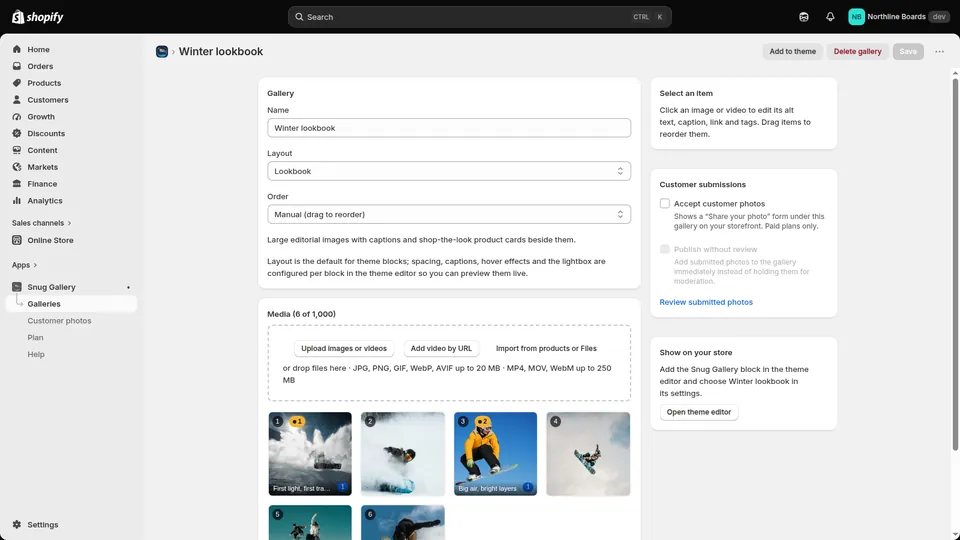
- In Snug Gallery, create a gallery called Gift guide and choose Collage (for a magazine feel) or Portfolio (even tiles with the filter bar on by default). Upload the photos or import them from Files or from the product's own media.
- For each image set the caption title to the gift's name, the caption text to your one-sentence reason, and the link to the product page. Links open the product in the same tab unless you tick Open in new tab.
- Add the tags: one recipient, one budget. Use the bulk tag editor in the gallery editor to apply a tag to a whole row of images at once. The filter bar keeps tags in the order they first appear, so tag the budget bands first on the first few images if you want them to show before recipients.
- If you are on Unlimited, open Shop the look on gift sets or photos that show several items and pin each product. A pinned photo of a stocked bar cart can sell three things from one image, which is exactly how a good gift guide works.
- Set Order to Manual and drag the images so the hero picks sit at the top. The Collage layout makes the first tile of every group large, so put your best photos in those slots.
Step 4: put it on a page with a URL that survives the season
- Create a page at Online Store > Pages. Name it Gift guide, not Gift guide 2026. The year goes in the heading on the page; the URL stays /pages/gift-guide so next year's refresh inherits this year's links and rankings.
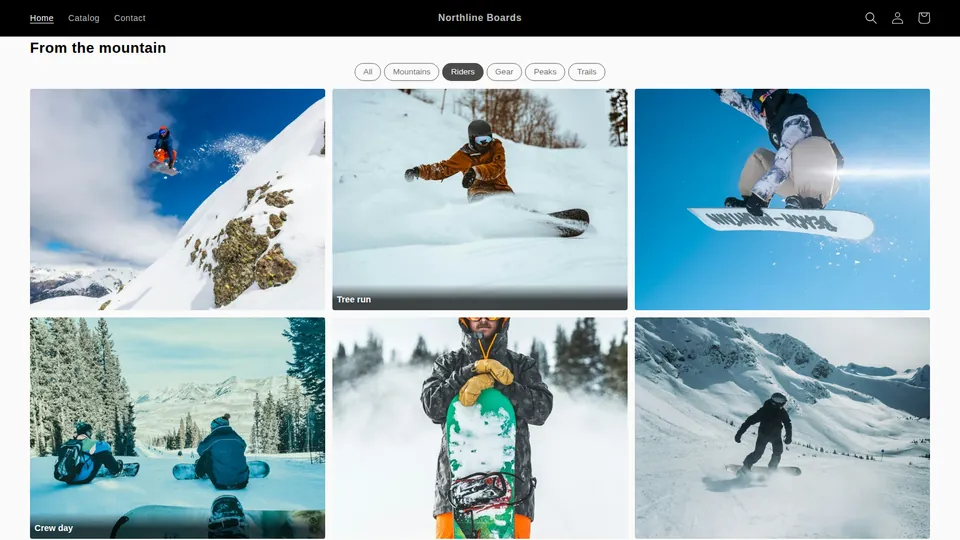
- Open the page in the theme editor, add the Gallery block from Snug Gallery and select your gallery. Turn on the Tag filter bar if the layout does not show it by default, and pick a caption mode that shows the title and text: overlay for Collage, below the image for Portfolio.
- Write a short introduction above the block in a Rich text section: who the guide is for, the shipping cutoff dates, and the return window. Shoppers buying for others need that reassurance more than a product-page visitor does.
- Set the page's SEO title and description in the page editor (“Gift guide: presents under $50, $100 and for every kind of person”). Add the page to the main menu for the season and link it from the home page hero and from your emails.
Step 5: deep-link the filters in your campaigns
The filter bar reads its state from the URL. Appending ?snug-tag= plus the tag to the page URL opens the guide already filtered to it: for a tag called “Under $50” that is ?snug-tag=Under%20%2450, URL-encoded, and the match ignores case. That turns one page into a dozen landing pages: the “gifts under $50” email links to the under-$50 view, the Instagram story for runners links to the runner view, and they all build authority for the same URL instead of splitting it across separate collections.
If the page has more than one gallery block, add &snug-gallery=<block id> to target a specific one; with a single block you can leave it out.
Timing and upkeep
Publish in October even if you are still swapping photos. Search engines need weeks to crawl, index and start ranking a page, and your own customers need to see it a few times before they remember it exists. A guide that goes live on Black Friday is a guide for the people who were already on your site.
Keep an eye on stock. A gift guide that links to sold-out products in December is worse than no guide. Snug Gallery images link to whatever URL you set, so when something sells out either swap the link to an in-stock alternative or remove the image; the filter bar and layout reflow automatically.
In January, do not delete the page. Replace the heading, remove the holiday copy, retag a few images as “for birthdays” and leave it as an evergreen gift page. In October you refresh it again, and the URL arrives at the season with a year of links behind it.
Snug Gallery is free to install and the gallery, captions, links and tag filters are on every plan; Shop the look pins are part of Unlimited at $9.99/month. The shoppable lookbook guide goes deeper on pinning, and the image SEO guide covers alt text and filenames for the photos you shoot.
Frequently asked questions
Should a Shopify gift guide be a page or a collection?
A page, if you want to curate. A collection can only group and filter by product attributes, while a page lets you organise by recipient and budget, write a reason next to each pick and keep a stable URL year after year. Use a collection when the guide is really just “every product under $50”, which Shopify's price filter already handles.
Can shoppers buy from the gift guide page?
Yes, in two ways. Every image can link to its product page on any Snug Gallery plan. On the Unlimited plan you can also pin products onto a photo with Shop the look, and shoppers add them to the cart from the pin without leaving the guide.
How do I let shoppers filter gifts by price or recipient?
Tag each image in the Snug Gallery editor (for example “Under $50” and “For the cook”) and turn on the Tag filter bar in the block settings. Shoppers get pill buttons above the gallery, and you can link straight to a filtered view with ?snug-tag=<tag> on the page URL.
Should I make a new gift guide page every year?
No. Keep one URL such as /pages/gift-guide, put the year in the on-page heading and refresh the images, tags and copy each season. Links and search rankings attach to the URL, and a page that has been live and linked for a year outranks a new one created in November.
More guides
- How to add a photo gallery to a Shopify store (no code)
- How to make a shoppable lookbook on Shopify
- Shopify gallery not loading? Why gallery apps vanish
- Cozy Image Gallery alternative: a 20-minute migration
- Who owns your gallery images? Shopify Files vs app-hosted
- Shopify app still charging after uninstall? What to do
- How to tell if a Shopify app is abandoned: a checklist
- Masonry, grid, carousel or collage: Shopify gallery layouts
- Accessible Shopify image gallery: an EAA-era checklist
- Instagram feed broken on Shopify? Own your customer photos
- Shopify video gallery: upload, YouTube or Vimeo?
- Protecting gallery images on Shopify: right-click blocking
- Does a photo gallery slow down your Shopify store?
- Shopify gallery images in Google Images: an SEO guide
- Shopify Canvas and Snug Gallery: what works today
- Replaced an image in Shopify but the old one still shows?