
The question “how do I export images from a Shopify gallery app” tends to be asked at the worst possible moment: the app is down, the developer is not answering, and the only copies of a season's product photography are inside it. Shopify app data lock-in is rarely deliberate, but it is common, and it comes from a single design decision the merchant never sees: whether the app uploads your photos into your own store's Files or into storage the developer controls. This article shows how to find out which one you have, how to get your images out in either case, and how Snug Gallery handles ownership, including what is and is not left in your store after you uninstall it.
The problem: photos you cannot reach
When a gallery app stores media on its own infrastructure, the merchant has a gallery but not the files. Everything looks fine until the app is unavailable; then there is no admin screen to download from, and the images referenced on the storefront come from a domain that is not responding. Merchants using Cozy Image Gallery described exactly this on the app's one- and two-star review page in August 2025: “All my project photos are trapped inside” (19 August 2025) and “I spent HOURS using this app for my website and now I guess I have to start over” (21 August 2025). The app remains listed on the App Store (3.1 stars on 28 September 2026). We are quoting the page, not asserting what happened on any individual store; read it in full for context.
Shopify's own guidance acknowledges the general risk. Its uninstall documentation tells merchants to “save any important data” because “some apps store data that you can't recover after uninstalling” (Uninstalling apps). The advice is sound, but it only works if the app offers an export, or if the data was in your store to begin with.
Why it happens: two places an app can put your photos
Shopify gives every store a Files library (Content, then Files in the admin) that holds images, videos and documents, serves them from Shopify's CDN and lets you reuse them anywhere in the admin (Uploading and managing files). Apps can write into that library through the Admin API: the app asks Shopify for an upload target with stagedUploadsCreate, sends the bytes there, then registers the file with a fileCreate call. The result is a file in your store, indistinguishable from one you uploaded by hand.
The alternative is simpler for the developer: accept the upload in the app's own admin page, store it in a bucket the developer pays for, and reference it by URL. The storefront works either way, so nothing in the App Store listing forces the choice to be visible. But the consequences differ. Files in your store outlive the app, appear in your own Files list, can be downloaded as originals, and are covered by your Shopify account. Files in the developer's bucket are available exactly as long as the developer is.
There is a second, smaller layer: the gallery itself, meaning the order, captions, tags and layout. That is data too, and it can live in your store (as metaobjects or metafields), in the developer's database, or partly in each. It is worth knowing where, but it is far less costly to lose than the media.
How to check where your images live
- Open a storefront page with the gallery, open the browser's developer tools (F12), select the Network tab, filter by Img and reload. Click any gallery image request and read its domain. If it is cdn.shopify.com, the file is in your store. If it is the app's domain or a generic storage host, the developer is hosting it.
- Cross-check in the admin. Go to Content, then Files, and search for a file name you recognise or filter by the upload month. An app that uses Files will have left its uploads here; you may also see a Used in filter that shows where a file is referenced.
- For the gallery data, look for the app under Content, Metaobjects. Apps that store their definitions in your shop often appear there with an entry type you can open and read, though what you can edit depends on the access the app granted.
- Write down what you find per gallery: images in Files or not, and gallery data in the store or not. That determines which of the next two paths you follow.
Getting your images out: the manual path
If the images are in Files, you already own them. Shopify's Help Center describes downloading the original, unoptimised file from each file's preview window with the download button; for many files, the bulk selection and filters on the Files page help you find them (Uploading and managing files). You can also skip the download entirely and pick the same files from Files when you rebuild the gallery in another app that supports it.
If the images are app-hosted and the app still renders, save them from the storefront now: right-click each image and choose Save image as, or open the largest version from the Network tab. Check the pixel dimensions; some apps serve resized copies and the originals may only exist on the developer's side. Then look for an export or download feature in the app's admin, and ask support for a bulk export in writing so you have a dated record of the request.
If the app is down and the images were app-hosted, your originals are the only source. Camera exports, a designer's handoff folder or the product photos already attached to your products are the usual places. Product images are in your store and can be reused directly.
How Snug Gallery handles ownership
Snug Gallery uploads every photo and video into your store's Files. In code, the upload route calls stagedUploadsCreate, posts the file to the staged target Shopify returns, then calls fileCreate with the alt text you entered, so the alt text is written on the file itself, not only in the gallery. On the Standard plan and above you can also import media that is already in your Files or attached to your products, in which case nothing is copied anywhere. Images are served from cdn.shopify.com on the storefront, and you can see, download or delete every one of them from Content, Files, with no involvement from the app.
Removing an image from a gallery, or deleting a gallery, removes the gallery records and leaves the file in Files. The app only deletes files in one situation: when an addition is rolled back, for example an upload that exceeded the plan's image limit or a customer submission that was rejected before publication.
The gallery data itself (order, captions, links, tags, product pins) is stored as app-owned metaobjects in your store. That means it renders on the storefront without our servers, and it is part of your store while the app is installed. It is honest to add what Shopify does with it on uninstall: according to Shopify's documentation, when an app is uninstalled Shopify deletes the app's metaobject definitions and “temporarily retains the metaobjects and their values without a definition”, with cleanup running asynchronously and no guaranteed retention period; reinstalling while the data is still retained reconnects it (Manage metaobject definitions). So after uninstalling Snug Gallery, plan to keep your images, which remain in Files indefinitely, and to rebuild layouts if you return much later. On our side, uninstalling deletes the store's access token and session record immediately; the retention terms are in the privacy policy.
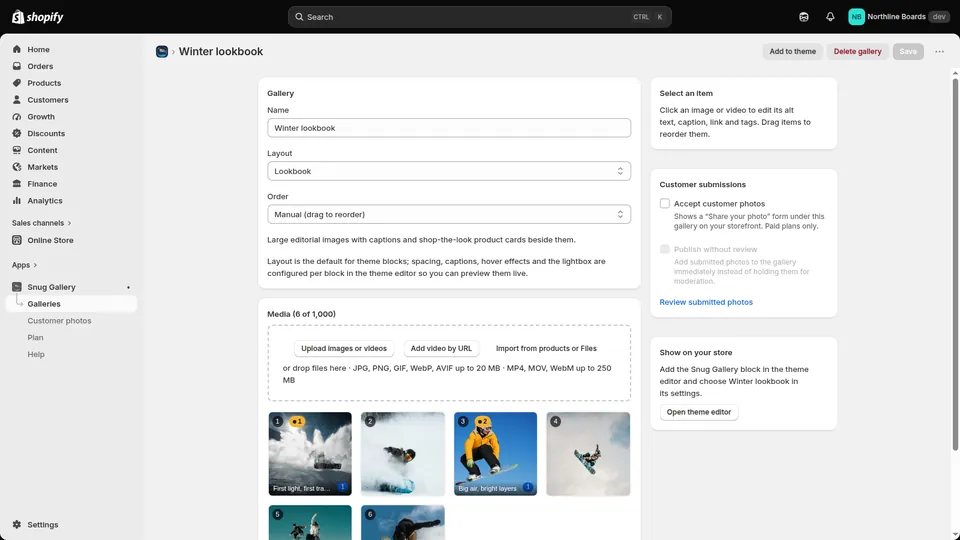
The screenshot below is the media area of the editor on our development store, with the upload, video-by-URL and import options. Everything added here lands in that store's Files.
What to ask any gallery app before you upload a thousand photos
Ask where uploads are stored, and check the answer with the Network tab after your first upload. Ask whether images appear in Content, Files. Ask what the app deletes on uninstall, and whether the answer is written down in its privacy policy. If the developer's answer is that images are hosted “on our fast CDN”, understand that as “on our servers”, and weigh the convenience against a migration that starts from scratch. If you are already in the middle of that migration, our step-by-step guide walks through rebuilding galleries from the images you have recovered.
Frequently asked questions
How do I export images from a Shopify gallery app?
Check whether the images are in Content, Files in your admin; if they are, download the originals from each file's preview or reuse them directly. If the app hosts them itself, save them from the storefront while it still renders and ask the developer for an export in writing. Your original files are the fallback.
Do my images stay in Shopify Files if I uninstall Snug Gallery?
Yes. Snug Gallery uploads into your store's Files and does not delete them on uninstall; only the app's access token and session record on our side are removed. The gallery records (order, captions, pins) are metaobjects that Shopify retains temporarily after uninstall without a guaranteed period, so treat those as rebuildable and the files as permanent.
Does uploading through an app use my Shopify storage?
Files uploaded into your store count as your store's files like any other upload, and they are served from Shopify's CDN. The practical benefit is that they appear in your Files library and are yours to download, reuse or delete.
Can I use photos already attached to my products in a gallery?
In Snug Gallery, yes, on the Standard plan and above: Import from products or Files lets you pick existing product images or files without re-uploading. The gallery then references the file that is already in your store.
More guides
- How to add a photo gallery to a Shopify store (no code)
- How to make a shoppable lookbook on Shopify
- Shopify gallery not loading? Why gallery apps vanish
- Cozy Image Gallery alternative: a 20-minute migration
- Shopify app still charging after uninstall? What to do
- How to tell if a Shopify app is abandoned: a checklist
- Masonry, grid, carousel or collage: Shopify gallery layouts
- Accessible Shopify image gallery: an EAA-era checklist
- Instagram feed broken on Shopify? Own your customer photos
- Shopify video gallery: upload, YouTube or Vimeo?
- Protecting gallery images on Shopify: right-click blocking
- Does a photo gallery slow down your Shopify store?
- Shopify gallery images in Google Images: an SEO guide
- Shopify Canvas and Snug Gallery: what works today
- Build a Shopify gift guide page that is not a collection
- Replaced an image in Shopify but the old one still shows?